
Passwords are the keys to your online life. They protect your email, your bank, your photos and your social media accounts. Yet most people still use the same weak password everywhere, because remembering a different strong password for every account feels impossible.
It does not have to be. A strong password is not about being clever with symbols. It is about length, uniqueness and a simple system that does the remembering for you.
This guide explains how to create strong passwords, why reusing them is dangerous, and how a password manager makes the whole thing easy — even if you are not technical at all.
What makes a password strong?
A strong password has three qualities. If it has all three, it is hard to guess and hard to crack. If it is missing one, it is much weaker than it looks.
1. Long. Length matters more than cleverness. A password of 15 characters made from ordinary words is stronger than a short password full of symbols that you can barely remember. Every extra character makes guessing far harder.
2. Unique. A password should be used for one account only. If you use the same password for your email and a shopping site, and the shopping site is breached, your email is exposed too.
3. Random. A password should not be guessable from your life. Names, birthdays, favourite teams, pet names and simple patterns are the first things an attacker will try.
The UK National Cyber Security Centre (NCSC) gives the same advice in plain terms: use three random words for passwords you need to remember, do not reuse passwords, and use a password manager for the rest. If you want the official guidance, the NCSC explains it clearly at https://www.ncsc.gov.uk/collection/top-tips-for-staying-secure-online/password-managers
Here is how common password habits compare:
| Password habit | What it looks like | The risk |
|---|---|---|
| Reused everywhere | The same password for email, shopping and social media | One leak unlocks many accounts |
| Personal details | A name, birthday or pet name with a year at the end | Easy to guess from social media |
| Short and simple | A short word with one number | Quick to guess or crack |
| Three random words | Three unrelated words together, for example river lamp guitar | Long, memorable and hard to guess |
| Generated by a password manager | A long random mix of letters, numbers and symbols | Very hard to guess, and you do not need to remember it |
Notice what is missing from the strong examples: there is no need for a complicated pattern of symbols. Length and randomness do the work.
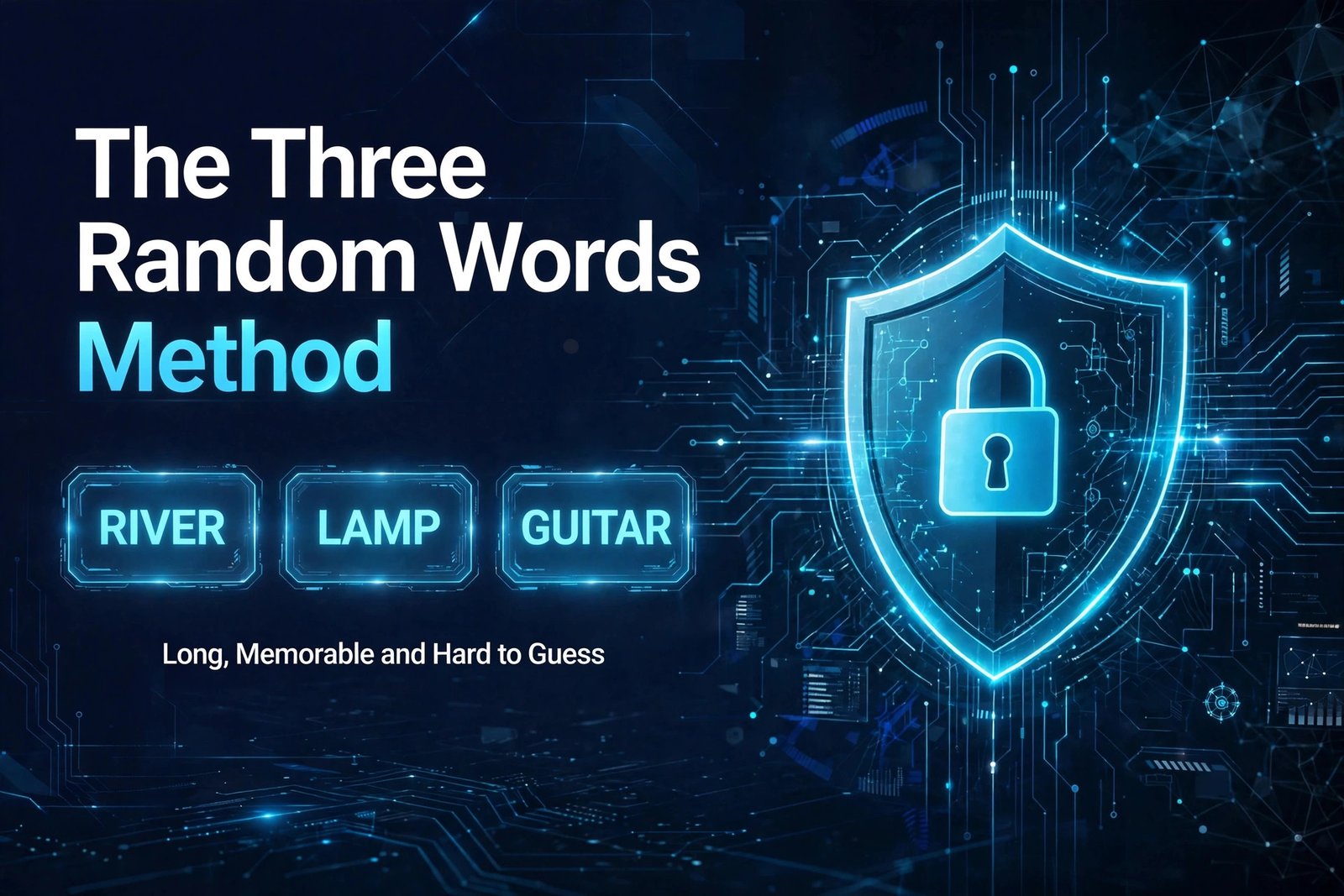
The three random words method
If you need to remember a password yourself, the three random words method is the simplest way to make a strong one.
Pick three words that have nothing to do with each other. Not a phrase, not a song lyric, and not words connected to your life. Three unrelated words, put together, make a password that is long and easy to picture, but hard for someone else to guess.
For example, three words like river, lamp and guitar have no obvious connection. Together they are 15 characters long, and they are far easier to remember than a short jumble of symbols.
A few rules make this method work:
- Choose the words at random, not from a sentence you know.
- Do not use words connected to you — your town, your job, your hobbies or your family.
- Add a number or a symbol only if a website requires it. The words themselves are doing the work.
- Use this method for the one or two passwords you must remember by heart, such as your password manager’s master password and your email password.
For every other account, you do not need to remember the password at all. That is what a password manager is for.
What is a password manager?
A password manager is a secure app that remembers your passwords for you. You remember one strong master password. The manager remembers all the rest.
When you sign up for a new account, the manager can generate a long, random, unique password for it. When you sign in, it fills that password in for you. You never need to type it, write it down, or reuse it.
Password managers come in two main forms:
Built into your browser or device. Most browsers, including Chrome, Edge and Safari, and most phones, already offer to save and generate passwords. This is a good starting point, and it is safe on your own devices if your device is locked and updated.
A third-party password manager app. These are dedicated apps you install on your phone, tablet and computer. They usually offer more features: they work across different browsers and devices, they warn you if a password has appeared in a known breach, and they let you store secure notes and payment details.
Either option is far better than reusing the same password everywhere. A dedicated app is usually the better choice if you use more than one browser or device, or if you want breach warnings and secure sharing with family.
One thing matters more than which manager you choose: protect the manager itself. Turn on two-factor authentication for your password manager account, keep the app updated, and make your master password a strong three-random-words passphrase that only you know.
If you are still building your general security habits, our beginner’s guide to cybersecurity explains how passwords fit into the bigger picture: https://darknet.cards/what-is-cybersecurity-beginners-guide/
Set up a password manager in six steps
Setting up a password manager takes about 20 minutes. Do it once, and it saves you time and worry for years.
Step 1: Choose a manager. Start with the one built into your browser or device, or pick a well-known third-party password manager. Do not download one from a random advert or an unfamiliar website. Get it from the official website or your device’s app store.
Step 2: Create your master password. This is the one password you must remember. Make it a passphrase of three random words, at least 15 characters long. Do not reuse a password you already use somewhere else.
Step 3: Turn on two-factor authentication. Do this for the password manager account first. If someone learns your master password, they still cannot get in without the second check from your phone.
Step 4: Let it generate new passwords. Go to your most important accounts first — email, then banking, then social media and shopping. For each one, use the manager to generate a new, unique password and save it. Change the password on the website, and let the manager store the new one.
Step 5: Turn on autofill, carefully. Autofill saves typing and helps protect you from phishing, because the manager will only fill your password on the real website, not on a fake copy. Make sure autofill is only enabled on your own devices, not on a shared or public computer.
Step 6: Check for weak and reused passwords. Most password managers have a security check that lists weak, reused or breached passwords. Work through that list over the next few days, starting with the accounts that matter most.
After this, signing in becomes easier, not harder. You open a site, the manager fills in the password, and you are in — with a different strong password on every account.
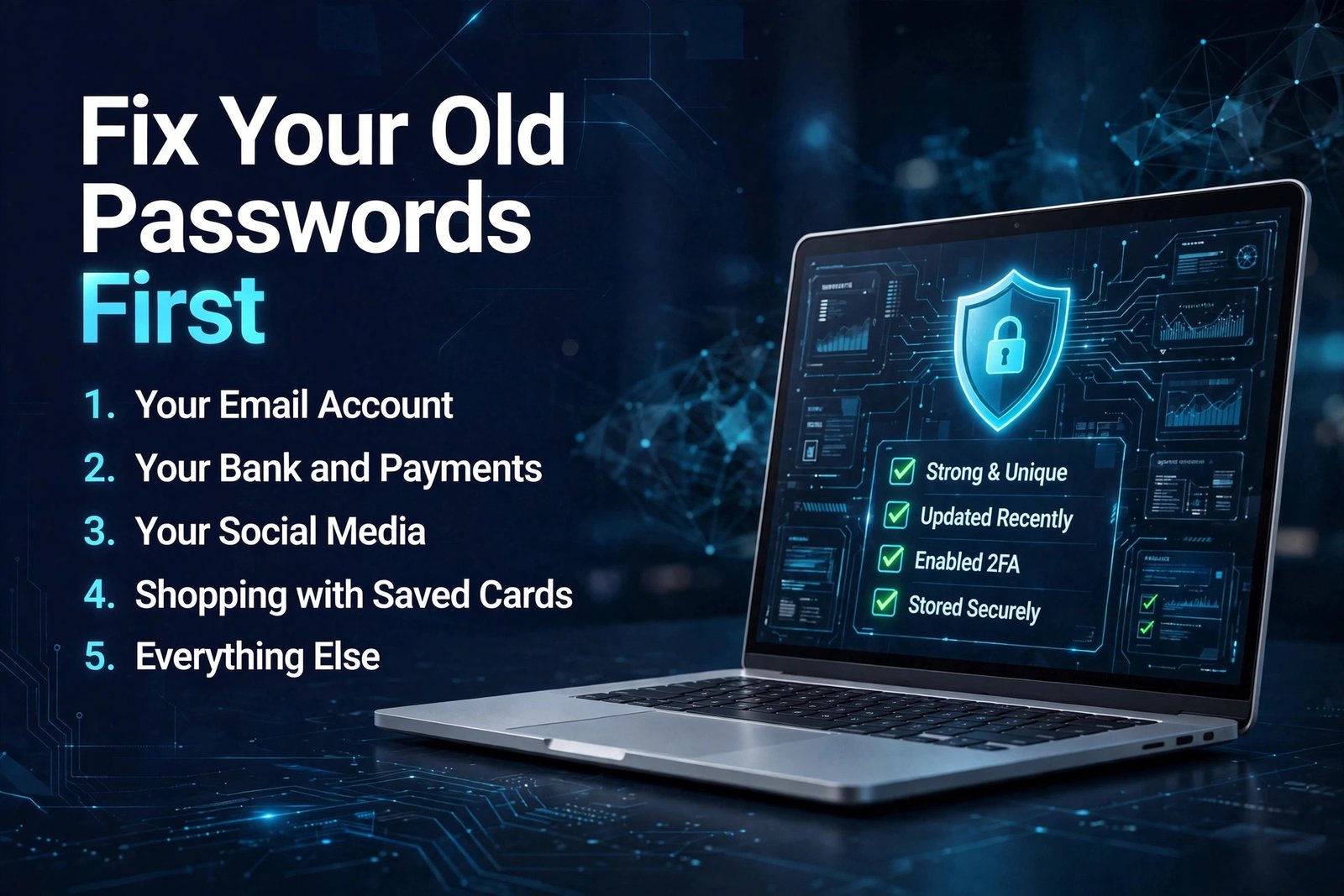
Fix your old passwords first
You do not need to change every password on the same day. Start with the accounts that would cause the most harm if someone got in.
Change these first, in this order:
- Your email account. Your email can reset the passwords for many other accounts. Protect it first, with a unique password and two-factor authentication.
- Your bank and payment accounts. Any account that can move money or spend it.
- Your main social media accounts. These can be used to message your friends and family with scams.
- Shopping accounts with saved payment details. If a card is saved there, treat it as important.
- Everything else. Work through the rest over a week or two, using your password manager’s list of weak and reused passwords.
Do not change a strong, unique password on a fixed schedule just because a calendar says so. Change it straight away if a service tells you there has been a breach, if you reused it somewhere else, or if you think someone may know it.
If you find a password you have reused in several places, change it everywhere, starting with the most important account. A password manager makes this far less painful, because you only need to remember the new master password, not every new password it generates.
Common password myths
“A complicated password with symbols is always best.”
Length and randomness matter more. A long passphrase of three random words is stronger than a short password full of symbols, and it is much easier to remember.
“I should change my passwords every month.”
Forced regular changes often make passwords weaker, because people pick small variations of the same password. Change a password when there is a reason to, not on a fixed schedule.
“Writing a password down is always unsafe.”
Writing your master password on paper and keeping it somewhere safe at home is far safer than reusing one weak password everywhere. Do not store passwords in an unprotected note on your phone or in an email to yourself.
“Password managers are a single point of failure.”
A password manager is protected by your master password and two-factor authentication. Without a manager, the single point of failure is the one password you reuse everywhere — and that one is far easier to steal.
“Nobody would bother attacking my accounts.”
Attackers do not pick targets one by one. They use automated tools to try leaked passwords on thousands of accounts at once. A reused password is exactly what those tools are looking for.
“Passkeys mean passwords are finished.”
Passkeys are a newer, stronger way to sign in, and the NCSC recommends using them wherever they are offered. But many accounts do not offer passkeys yet, so strong, unique passwords and two-factor authentication are still essential for those accounts.
Frequently asked questions
How long should a strong password be?
Aim for at least 15 characters for passwords you remember yourself, using three random words. Passwords generated by a password manager are usually longer, and that is fine — you do not need to remember them.
Is it safe to use a password manager?
Yes, if you choose a reputable one, protect it with a strong master password and two-factor authentication, and keep it updated. It is far safer than reusing the same password across many accounts or keeping passwords in a plain document.
What is the best password manager for beginners?
The one built into your browser or phone is the easiest place to start, because it is already there. If you use several browsers or devices, a well-known third-party password manager is usually a better fit. Choose one from its official website or your app store, not from an advert.
Should I use the same master password as my email password?
No. Your master password and your email password should be different and unique. If one is ever exposed, the other should still be safe.
What should I do if my password appears in a data breach?
Change that password straight away, and change it on any other account where you reused it. Turn on two-factor authentication if it is not already on, and check the account for activity you do not recognise.
Are passkeys better than passwords?
Yes, where they are offered. A passkey lets you sign in with your device’s unlock method, such as a fingerprint or face check, and there is no password to steal or reuse. Use passkeys first when an account offers them, and keep strong, unique passwords with two-factor authentication for accounts that do not.
The bottom line
Strong passwords are not about memory tricks or complicated symbols. They are about two simple rules: make each password long and unique, and let a password manager remember them for you.
Start today with your email account. Give it a unique password, turn on two-factor authentication, and set up a password manager with a strong master passphrase. Then work through your other important accounts, one at a time.
Once that is done, you will have done more for your online security than most people ever do — and signing in will actually feel easier, not harder.