
Most apps ask for something the first time you open them. A photo app wants your pictures. A map app wants your location. A messaging app wants your microphone. Most of us tap Allow without thinking, because we want to get on with what we were doing. That quick tap is fine most of the time. But over months, those small yeses add up: a torch app that can see your contacts, a game that knows where you live. It is worth knowing what you agreed to — and how to change your mind.
Learning how to manage app permissions is one of the simplest privacy habits you can build. It takes a few minutes, it costs nothing, and it puts you back in charge of what your apps can see and hear. This guide walks through it in plain English, for Android and iPhone.
What Are App Permissions?
An app permission is your phone asking an app for access to something on your device. Your location, camera, microphone, contacts and photos sit behind a locked door. An app cannot just walk in. It has to knock, and you decide whether to open the door. That knock usually appears as a small pop-up the first time an app needs something: “Allow this app to access your location?” You can say yes, say no, or on most modern phones, say yes only while you are using the app.
Permissions exist for a good reason. A video calling app cannot work without the camera and microphone. A maps app cannot guide you anywhere without your location.
A puzzle game does not need your contacts, and a recipe app does not need your location all day. That is why permissions are a basic part of everyday cybersecurity and of digital privacy: small choices, made by you, about your own data. Nothing here is permanent — every permission can be reviewed and changed later.
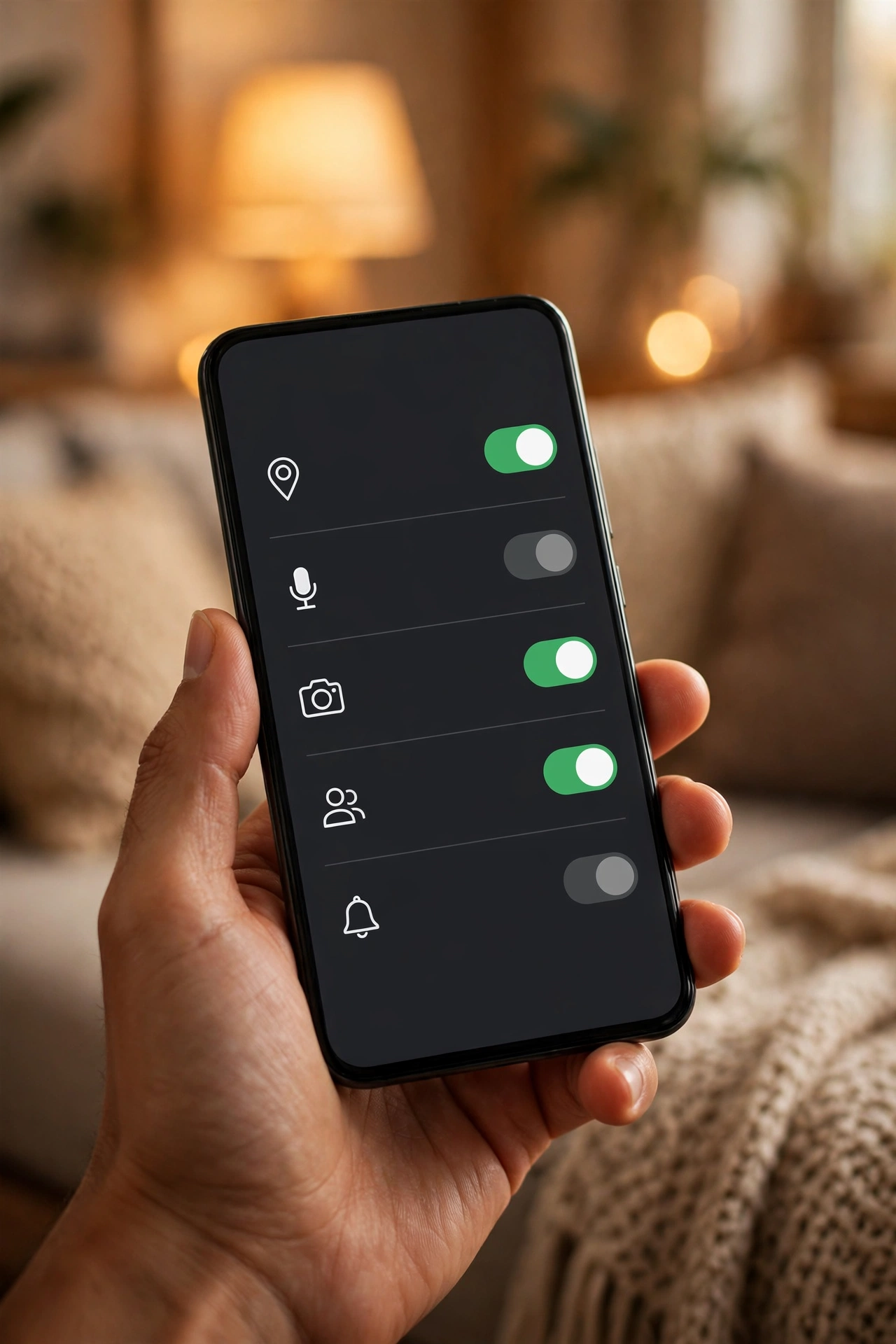
Location, Camera, Microphone, Contacts and Photos — Explained
Not all permissions carry the same weight. Some reveal very little. Others can reveal a great deal about your daily life. Here are the five that matter most.
Location. This tells an app where you are — precise, down to the street, or approximate, roughly your town. Maps, ride-hailing and delivery apps genuinely need it. Most others do not.
Camera. This lets an app take photos and record video. It makes sense for camera apps, video calls, and apps that scan cheques or barcodes.
Microphone. This lets an app listen and record sound. It makes sense for calls, voice notes and voice search. It is the permission people feel most uneasy about.
Contacts. This gives an app the names, numbers and email addresses in your address book. Messaging apps use it to find your friends.
Photos. This gives an app access to your pictures and videos. Photo editors and social apps need it. On modern phones you can often give an app access to selected photos only, instead of your whole library.
| Permission | What it can access | When it makes sense |
|---|---|---|
| Location | Where you are, and where you have been | Maps, travel, delivery, ride-hailing |
| Camera | Your camera and video recording | Video calls, photos, scanning codes |
| Microphone | Sound around your phone | Calls, voice notes, voice search |
| Contacts | Names, numbers and emails in your address book | Messaging apps finding your friends |
| Photos | Your pictures and videos | Photo editing, sharing, backup apps |
How to Manage App Permissions on Android — Step by Step
Android phones differ a little from brand to brand, so the exact words on screen may vary. The idea is the same on all of them: find the app, open its permissions, and choose what it can use.
- Open Settings on your phone.
- Tap Apps, then tap See all apps if you need the full list.
- Tap the app you want to check.
- Tap Permissions. You will see everything the app has asked for, split into what is allowed and what is not.
- Tap any permission to change it. For location, camera and microphone you will usually see Allow all the time, Allow only while using the app, Ask every time, and Don’t allow.
- Pick the option that fits how you use the app. For most apps, “Allow only while using the app” is the sensible choice for location.
- Go back, and the change takes effect straight away.
You can also check one permission at a time. In Settings, go to Privacy, then Permission manager, pick a permission such as Location, and you will see every app that can use it. It is the fastest way to spot the odd one out.
How to Manage App Permissions on iPhone — Step by Step
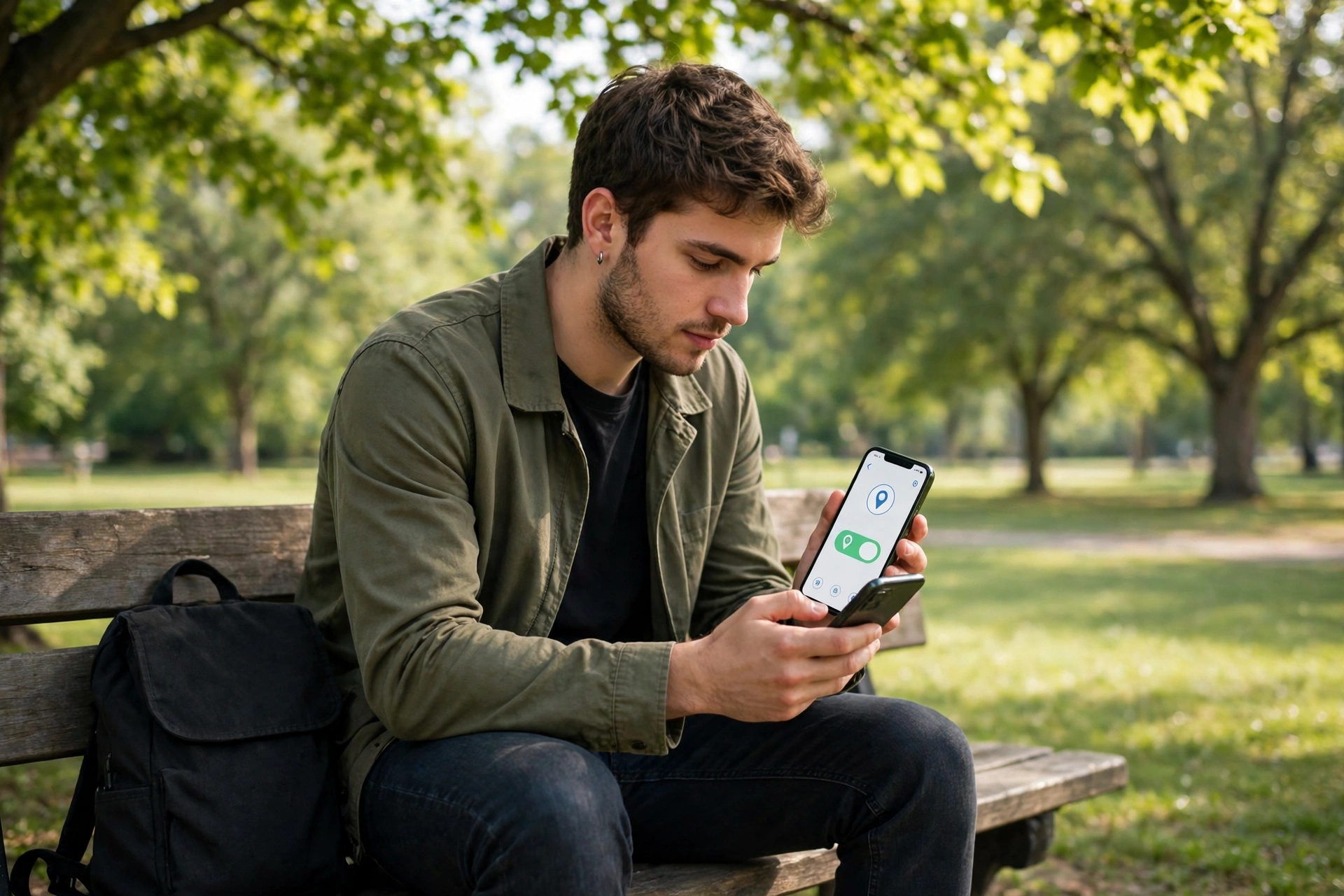
On an iPhone, all app permissions live in one place: Settings, under Privacy and Security. Apple also offers the App Privacy Report, which shows how often apps have used the permissions you granted them. Apple’s own guide to app privacy features explains these controls in detail.
- Open Settings on your iPhone.
- Tap Privacy and Security.
- You will see a list of data types: Location Services, Tracking, Contacts, Calendars, Photos, Camera, Microphone, and more. Tap any one of them.
- You will see the apps that have asked for access to that type of data. Tap an app to change what it can do.
- Choose the level of access. For Photos, you can choose None, Selected Photos, or Full Access.
- For Location Services, choose Never, Ask Next Time or When I Share, While Using the App, or Always. For almost every app, While Using the App is enough. Very few apps need to know where you are when they are closed.
- To stop apps asking to track you across other companies’ apps and websites, go back to Privacy and Security, tap Tracking, and switch off Allow Apps to Request to Track.
You can also work from the other direction. Scroll down in Settings until you find the app itself, tap it, and you will see its permissions in one place. A green dot at the top of the screen means an app is using the camera; an orange dot means the microphone.
Which Permissions Should You Be Careful About?
Most permissions are harmless in the right context. The risk comes from permissions that do not match what the app does, or that stay switched on long after you stopped using the app.
Location set to Always. This is the most revealing permission on your phone. An app that knows where you are at all times can build a picture of your home, your workplace and your routine. Very few apps need this.
Microphone access for apps that do not record anything. If an app has no voice feature at all, it has no reason to use your microphone. A shopping app, a game or a photo filter does not need to hear you. Switch it off.
Full access to your photos. This means the app can see every picture in your library, including screenshots of tickets, documents and messages. Where your phone offers the choice, pick Selected Photos and choose only the ones the app needs.
Contacts for apps that do not connect you with people. A messaging app needs your contacts to work. A torch app, a calculator or a wallpaper app does not.
Permissions in apps you do not recognise. If you do not recognise an app, or you have not used it in months, remove its permissions. If you never use it at all, delete it. The same caution you apply to suspicious messages — see our guide on how to identify and avoid phishing attacks — applies to suspicious apps too.
A good rule of thumb: if you cannot explain, in one sentence, why the app needs the permission, switch it off and see what happens. Most of the time, nothing will change. If the app does need it, it will ask you again. Permissions are only one layer — strong passwords and a locked screen matter too.

A Simple Check-Up Routine You Can Repeat Every Month
Managing app permissions is not a one-time job. You install new apps, you try new things, and permissions quietly pile up. The answer is a short monthly check-up. Set a reminder for the first Sunday of the month. Ten minutes is enough.
- Open your permission settings — Permission manager on Android, or Privacy and Security on iPhone — and look at Location first. Switch anything you do not recognise to While Using the App or Never.
- Check Camera and Microphone next. Any app on those lists with no camera or voice feature can lose the permission.
- Check Photos. If an app has full access but only needs one or two pictures, change it to Selected Photos.
- Look at the apps you have not opened in the last month. If you do not need one, delete it. Fewer apps means fewer permissions to worry about.
- Finally, check the rest of your phone’s basic security while you are here. Is your screen lock on? Are your apps up to date? Have you switched on two-factor authentication for your email and main accounts?
Myths About App Permissions
Myth 1: “If I say no, the app will stop working.” Most of the time, this is not true. Many apps ask for permissions they would like, not permissions they must have. If you say no to location, a shopping app will still let you shop. If an app truly cannot work without a permission, it will tell you, and you can change your answer in Settings in seconds.
Myth 2: “Deleting an app deletes everything it collected.” Deleting an app stops it collecting anything new, but it does not delete information the app already sent to its own servers. If that worries you, look for a delete-account or delete-data option inside the app before you remove it.
Myth 3: “Only dodgy apps misuse permissions.” Well-known, popular apps can ask for more than they need too — sometimes for advertising, sometimes because a feature was built with more access than it needs.
Myth 4: “My phone’s settings already protect me.” Default settings are a good starting point, but they are designed for convenience as much as privacy. If you tap Allow in a hurry, your phone takes that as your decision.
Frequently Asked Questions
Can I change app permissions after I have already allowed them?
Yes. Nothing you agree to is permanent. On Android, go to Settings, then Apps, tap the app, and tap Permissions. On iPhone, go to Settings, then Privacy and Security, and tap the type of data you want to check.
Will an app stop working if I turn off a permission it needs?
It might lose one feature, but it will usually keep working. A maps app without location cannot show where you are, but it can still show you a map. A messaging app without microphone access cannot record voice notes, but it can still send messages.
What does “Allow only while using the app” mean?
It means the app can use the permission while it is open on your screen, and not when it is closed or running in the background. For location, this is the best choice for most apps.
Is it safe to give an app access to all my photos?
It is safer to give it access to selected photos only, where your phone offers that choice. Full access means the app can see every picture in your library, including screenshots and personal documents.
Why does a simple app ask for so many permissions?
Sometimes the developer added features that need them, and sometimes the app collects extra data for advertising or analytics. Sometimes the app was built using a toolkit that requests permissions by default. Look at what the app actually does, and switch off anything that does not match.
How often should I review my app permissions?
Once a month is a good rhythm, and it only takes about ten minutes. At the very least, check them whenever you install a new app or after a major software update.
The Bottom Line
App permissions are not complicated, and they are not something to be afraid of. They are a simple set of switches, and you are the person who controls them. Pause before you tap Allow, check what you have already agreed to every now and then, and switch off anything that does not make sense. Give location to the apps that need to know where you are, and only while you are using them. Give the camera and microphone to the apps that actually take pictures or record sound. Keep your photos and contacts for the apps that genuinely need them.