
Your phone holds your photos, messages, banking app, email, work files and contacts — all in one small device you could lose in a moment. Learning how to keep your phone safe is worth a little time, and it is not complicated. It comes down to four habits: keep the software up to date, lock the screen, check what your apps can access, and keep a backup of the things you cannot replace.
This guide covers each habit in plain language. The steps take about half an hour. If you are new to this, start with the basics of what cybersecurity means for everyday users.
1. Keep Your Phone and Apps Updated
Updates are the most useful thing you can do for your phone, and the easiest to put off. Many fix security holes found in the software: when a mistake that could let someone in is found, the maker sends out a fix — and if you do not install it, the hole stays open on your phone.
Set updates to happen on their own: turn on automatic updates for the operating system and your apps. For a big update, plug the phone in, connect to Wi-Fi, and let it finish.
Only install updates from the phone itself, through Settings or the official app store. If a text message or pop-up tells you to download an update from a link, do not tap it — real updates do not arrive by text. That trick is related to the phishing messages covered in how to identify and avoid phishing attacks. If the maker has ended support for your phone, think about a replacement when you can; you do not need the newest model, just one that still receives updates. The UK’s National Cyber Security Centre explains why on its page about keeping devices and software up to date.
2. Lock Your Screen — and Use Biometrics Well
Your lock screen is the front door of your phone. Plenty of people still use no lock at all, or a simple pattern anyone watching over their shoulder could copy. If that is you, this is the one change to make today.
Use a six-digit PIN rather than four digits, and avoid obvious choices — your birth year, 123456, or the same number repeated. Then add a fingerprint or face unlock for convenience. Biometrics work best as a partner to a strong PIN, not a replacement: your phone will still ask for the PIN after a restart, and that PIN is the real fallback. If it matches your bank card PIN, change one of them.
Set the screen to lock quickly — thirty seconds of inactivity is a good setting — and hide message previews on the lock screen. When you type your PIN in public, shield the screen with your hand. Your accounts need their own protection too: strong, different passwords and a second step to sign in, as explained in our guides to strong passwords and two-factor authentication.
3. Check Your App Permissions
Apps ask for permissions — access to your location, camera, microphone, contacts and photos. Some requests make sense: a maps app needs your location. But a torch app does not need your contacts, and a game does not need your microphone.
We usually say yes in a hurry. Over time that adds up: an old app you barely use may still have access to your location or photos long after you forgot it. Fix it with a quick review every few months. On iPhone, go to Settings, then Privacy and Security; on Android, go to Settings, then Privacy, then Permission Manager.
For location, most apps only need it while you are using them — change “Always” to “While Using the App”, or to “Never” if the app has no need for it at all. For photos, give apps access only to selected photos, rather than your whole library. Only apps that record sound or take pictures need the microphone and camera, so if a game asks for the microphone, say no. Very few apps genuinely need your contacts. If you are not sure, choose the stricter option — you can always change it back.
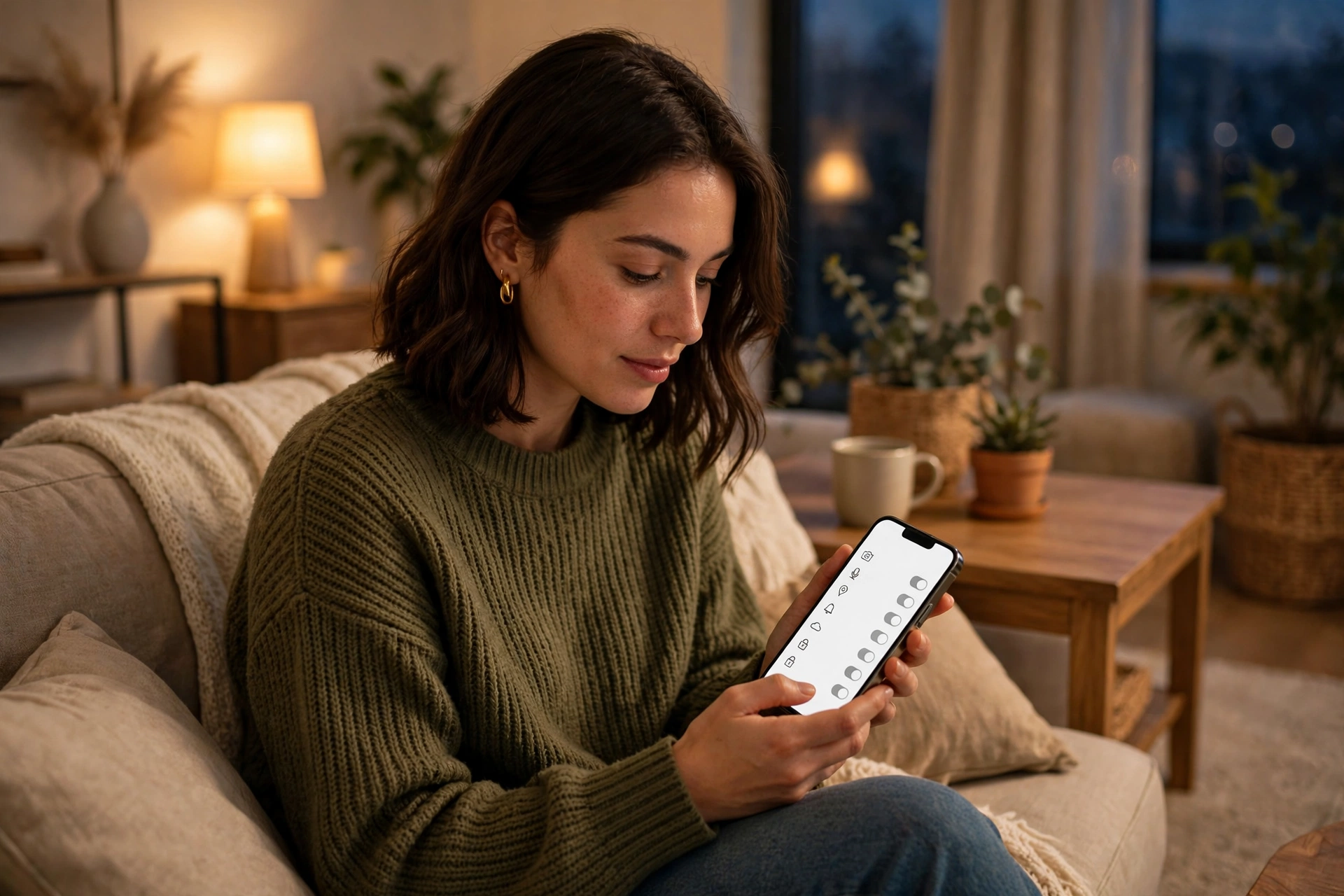
While you are there, delete the apps you no longer use — an app you never open still holds permissions. Permissions are a privacy question too: they decide what information leaves your phone. Our guide on what digital privacy is and why it matters goes into that side in more detail.
4. Back Up the Things You Cannot Replace
Phones get lost, stolen and dropped. A phone can be replaced, but your photos, messages and notes cannot be bought again. A backup — a copy of your important stuff, kept somewhere other than the phone — makes a broken or lost phone an inconvenience rather than a disaster. The best backup happens on its own.
Turn on your phone’s built-in backup — iCloud Backup on iPhone, Google One backup on Android — and check once that it has completed. Turn on photo backup too. Keep a second copy of the most important things on an external drive, a USB stick, or a second cloud service, and test it occasionally from another device.
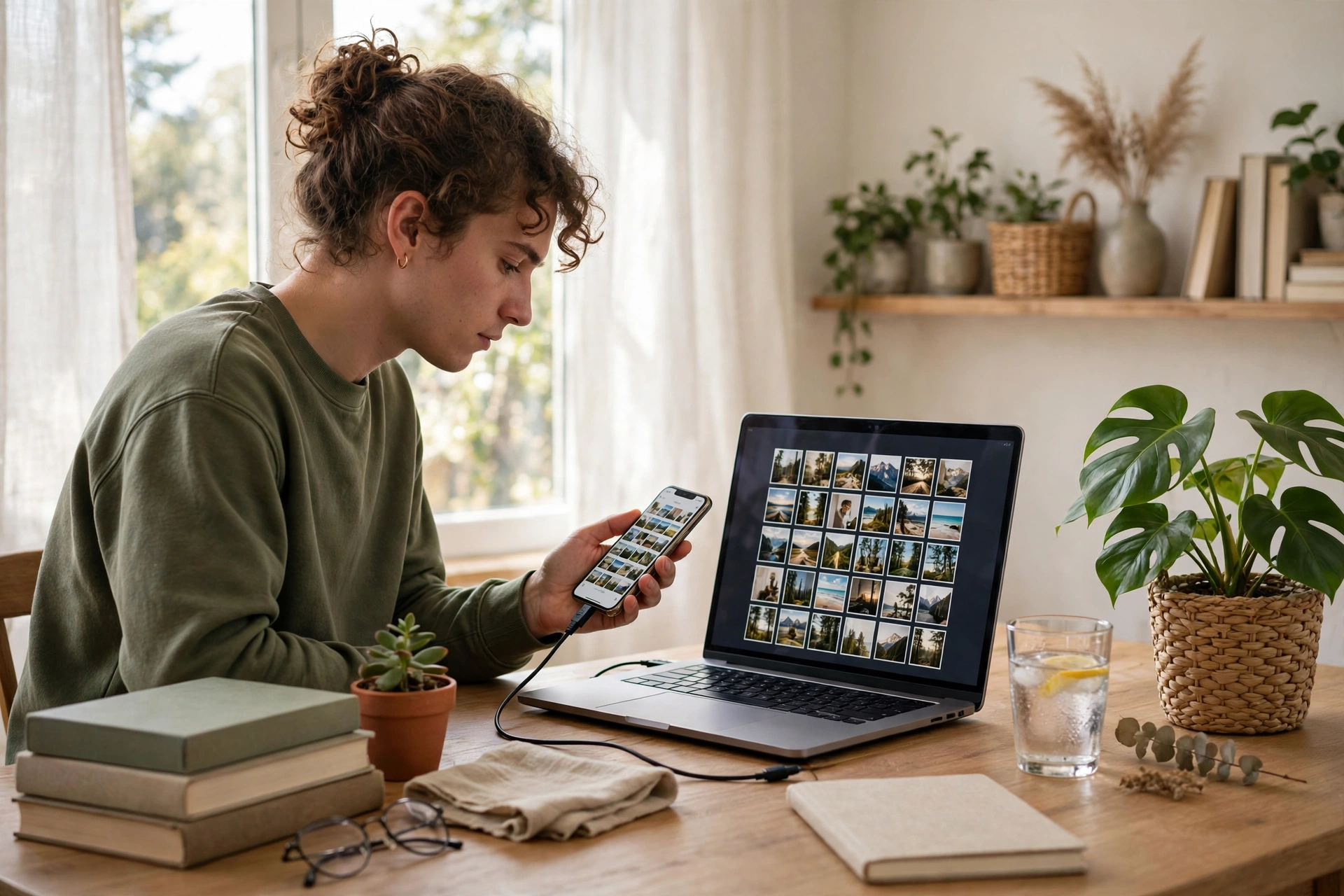
Protect your cloud account properly: it holds a copy of your whole phone, so it deserves a strong, unique password and two-factor authentication. Our guides on strong passwords and two-factor authentication cover that step by step.
5. If Your Phone Is Lost or Stolen — Act Fast
Even with everything set up, a phone can still be lost or stolen. What matters then is speed — the first hour is the important one.
- Try to locate it. Both iPhone and Android have a built-in “find my device” feature. From another device, sign in and see where the phone is, or make it play a sound, even on silent.
- Lock it remotely, and put a message on it, such as a number to call. Do this even if you think you will find it — a locked phone is useless to a thief.
- Erase it remotely if you need to. If the phone looks gone for good, erase it — with a backup in place, that is a safe decision, because your files are already copied elsewhere.
- Tell your mobile network and ask them to block the SIM card, so no one can use your number to receive calls or texts — including security codes sent by text.
- Change your important passwords, starting with email and banking — email is often the key to resetting everything else.
- Report a stolen phone to the police and keep the crime reference number for any insurance claim.
Make sure “find my device” is turned on now, before you need it: on iPhone, Settings under your name, then Find My; on Android, Settings, then Security, then Find My Device. Turn it on today and check it works.
6. Be Careful on Public Wi-Fi
Public Wi-Fi — in cafes, airports, hotels and trains — is convenient, and most of the time it is fine. But be more careful on a network you do not control. The rule: browse and read, but avoid the sensitive stuff. Do not log in to your bank, enter card details, or open private work documents. Wait until you are on home Wi-Fi or mobile data.
Turn off Wi-Fi when you are not using it, and forget networks you no longer need. Only join networks you recognise — ask the staff for the real network name, because fake networks with similar names are a known trick. Keep your software updated too. Just use it with a little common sense.
A Quick Phone Safety Check
If you only have ten minutes, here is the whole guide in one table. Work through it once, then repeat the review every few months.
| Check | What to do | How often |
|---|---|---|
| Updates | Turn on automatic updates for the system and apps | Once, then automatic |
| Lock screen | Six-digit PIN plus fingerprint or face unlock | Once, then check yearly |
| Lock-screen notifications | Hide message previews on the lock screen | Once |
| App permissions | Review location, photos, camera, microphone and contacts | Every few months |
| Unused apps | Delete apps you no longer use | Every few months |
| Backup | Turn on automatic backup and photo backup; check it worked | Once, then check monthly |
| Find my device | Make sure it is turned on and you can sign in to it | Once, then check yearly |
| Public Wi-Fi | Avoid banking and shopping on unknown networks | Every time |
| Passwords and sign-in | Strong, unique passwords and two-factor authentication on key accounts | Once, then when you change a password |
Myths About Phone Safety
“I have nothing worth stealing.” Almost never true: your phone has your email, which can reset your other accounts, plus your photos, contacts and often a banking app.
“My phone cannot get malware because I only download from the official app store.” The official stores are much safer than random websites, but they are not perfect — bad apps do sometimes slip through, so check an app’s reviews and permissions first.
“A VPN makes me completely safe.” A VPN can help, especially on public Wi-Fi, but it does not protect you from a bad app, a weak password, a phishing message or a phone with no lock screen. It is one extra layer, not a replacement for the basics.
“I do not need a backup because I never lose things.” Phones also break, get stolen and fall into water. A backup is about the things you cannot control, and it costs only a few minutes to set up.
“Security is too technical for me.” Updates, a lock screen, a permissions check and a backup are all things you can do from the Settings app, with no special knowledge.
Frequently Asked Questions
How do I keep my phone safe from hackers?
Keep your phone and apps updated, use a strong lock screen, and only install apps from the official app store. Protect your accounts with strong, unique passwords and two-factor authentication, and be careful about links in messages. No single step does everything — it is the combination that protects you.
Should I use a PIN, fingerprint or face unlock?
Use a PIN and a biometric together: a six-digit PIN that is not obvious, plus fingerprint or face unlock for convenience. The PIN is the secure fallback your phone asks for after a restart. Avoid using the same number as your bank card PIN.
Are free apps safe to download?
Many free apps are safe, but some make money from advertising or collecting more data than they need. Check who made an app and the permissions it asks for. Always download from the official app store, never from a link in a message.
How often should I back up my phone?
Ideally your backup runs automatically — every day when the phone is charging and on Wi-Fi is a common setting. If you back up by hand, once a week is reasonable. Check every month or so that the backup has actually run.
What should I do if I click a suspicious link on my phone?
Do not panic, and do not enter any details on the page that opens. Close the tab and delete the message. If you entered a password, change it straight away from the real website or app — not through the link — and turn on two-factor authentication. Our guide on how to identify and avoid phishing attacks explains the warning signs.
Is public Wi-Fi safe for banking?
Better not to do banking on public Wi-Fi. Use your mobile data or wait until you are on a network you trust, such as your home Wi-Fi. If you have no choice, use the bank’s own app or its real website, and log out when you finish.
The Bottom Line
Keeping your phone safe does not take special skills or hours of work — just a few settings, changed once, and a short check every few months. Turn on automatic updates, lock the screen with a good PIN and a fingerprint or face unlock, take back app permissions that do not make sense, turn on automatic backup, and make sure you can find, lock and erase your phone if it goes missing. Do those things and your phone will be far harder to get into, far easier to recover, and far less stressful to lose.