
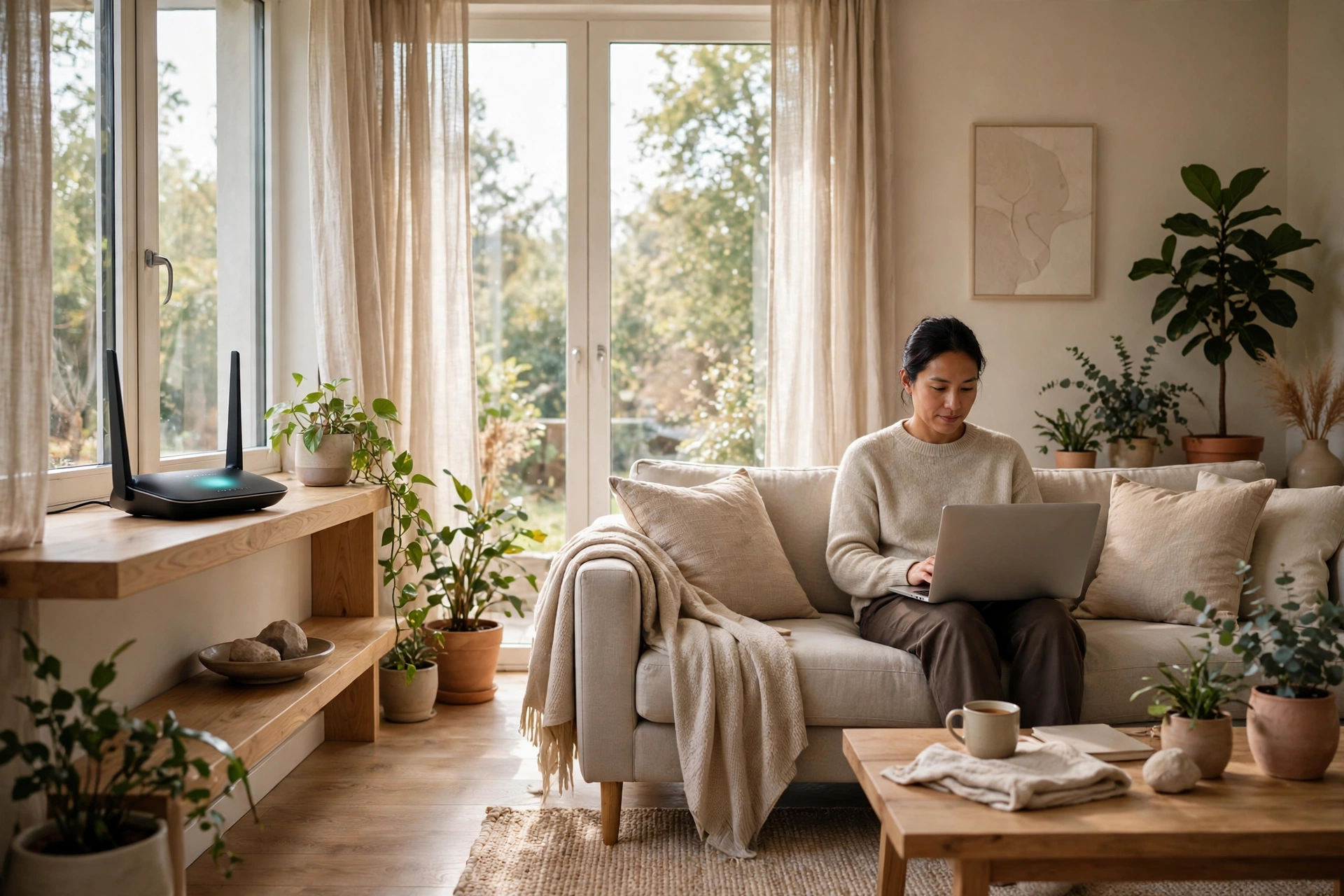
Your home Wi-Fi connects almost everything you own: your phone, your laptop, your television, your doorbell, your printer. They all talk to each other through one small box, your router. Most of us set that box up once, on the day it arrived, and never touched it again. That is normal — and it is also the reason home networks are such an easy target.
The good news is that you do not need to be technical to fix this. You do not need new equipment or an afternoon of reading manuals. If you can log into a website and change a password, you can do this. In about fifteen minutes, you can close the most common gaps in a home network. This guide shows you how to secure home wi-fi step by step, in the order that matters most.
Why your router is the front door to your home
Think of your router as the front door to your digital home. Every device inside connects through it, and every bit of data going in or out passes through it. If someone gets control of the router, they are not just borrowing your internet — they can see which devices are connected and change where your traffic goes.
The way in is usually boring rather than clever. Routers often still use the password they shipped with, printed on a sticker or listed on the manufacturer’s website. Old software is another common way in: like your phone, your router runs software, and when it is out of date, known weaknesses stay open. If you are new to this kind of thinking, our beginner’s guide to what cybersecurity means for everyday users explains the basic ideas in plain language.
Before you start: what you need
You need three things: a laptop or phone connected to your home Wi-Fi, access to the room your router sits in, and about fifteen minutes without interruption.
You will also need to log into your router’s settings page. The address is usually printed on a sticker on the router, along with the default login details. Common addresses are 192.168.1.1 or 192.168.0.1, which you type into your browser’s address bar like a website address. Do not worry if the settings page looks plain — router pages rarely look pretty. Look for headings like Wireless, Security, Administration, or Advanced. If your internet provider gave you the router, you can still change most of these settings.
The 15-minute checklist: how to secure home wi-fi, step by step
Work through these steps in order. Each one takes a minute or two, and each one closes a real gap. If a step does not apply to your router — for example, if it has no guest network option — skip it and move on. Doing most of the list is far better than doing none of it.
1. Change the router admin password (2 minutes)
This is the most important step, so do it first. Your router has two different passwords. The Wi-Fi password is the one your family types in to join the network. The admin password is the one that opens the router’s settings page — and if someone knows it, they can change anything.
Log in and look for Administration, Management, or System. Change the admin username if you can, and change the password to something long and unique, used nowhere else. A password manager makes this easy. If you have never used one, our guide to creating strong passwords and using a password manager walks through it in plain steps. Save the new password somewhere safe before you log out.
2. Update the router firmware (2 minutes)
Firmware is the software built into your router. Manufacturers release updates to fix security problems, just like phone updates do. Look for Firmware Update or Software Update, usually under Administration or Advanced, and install one if it is available. If your router offers automatic updates, turn them on. If your router is several years old and the manufacturer no longer offers updates for it, it is time to replace it — an old router that cannot be updated keeps the same weaknesses forever.
3. Change the Wi-Fi password and network name (2 minutes)
Now change the password people use to join your Wi-Fi. Pick a long passphrase you can remember, made of several unrelated words, rather than a short password with a few symbols swapped in. Length matters more than cleverness. Avoid your name, your address, or your pet’s name — anything a neighbour could guess.
While you are there, change the network name, also called the SSID, if it still shows the router’s brand or model. Pick something neutral that does not identify you. After you save the new password, your devices will disconnect, and you will need to reconnect them. Do that now.
4. Turn on WPA3, or WPA2 if WPA3 is not available (2 minutes)
Encryption scrambles the data travelling between your devices and your router, so someone nearby cannot simply read it. In the wireless security settings, look for the encryption or security mode. Choose WPA3 Personal if your router offers it. If it does not, choose WPA2 with AES. Do not use WEP, the original WPA, or an open network with no password at all — those are old, weak, and easy to get past. If your router only offers WEP, it is far too old to trust, so plan to replace it. If some older devices cannot connect after you switch to WPA3, try the mixed WPA2/WPA3 mode if your router offers one.
5. Set up a guest network (2 minutes)
A guest network is a second Wi-Fi network from the same router, kept separate from your main one. Visitors use it, and so do your smart gadgets if you want to keep things tidy. The point is simple: a guest on your network should not be able to reach your laptop, your files, or your printer.
Look for Guest Network or Guest Wi-Fi in the wireless settings and turn it on. Give it its own password, different from your main Wi-Fi password. When friends visit, give them the guest password. If you have smart devices — a doorbell, a camera, a speaker — consider putting them on the guest network too, so that if one gadget ever has a problem, it cannot easily reach your main devices. This also helps your digital privacy at home.
6. Turn off WPS (1 minute)
WPS, or Wi-Fi Protected Setup, is the button on your router that lets a device join the network with a press instead of a password. It sounds convenient, and it is — for you and for anyone else within reach of the button or the short PIN that goes with it. The PIN method in particular can be guessed far more easily than a proper password. Look for WPS in the wireless settings and turn it off. You can still connect new devices the normal way, by typing the Wi-Fi password.
7. Check the devices on your network (2 minutes)
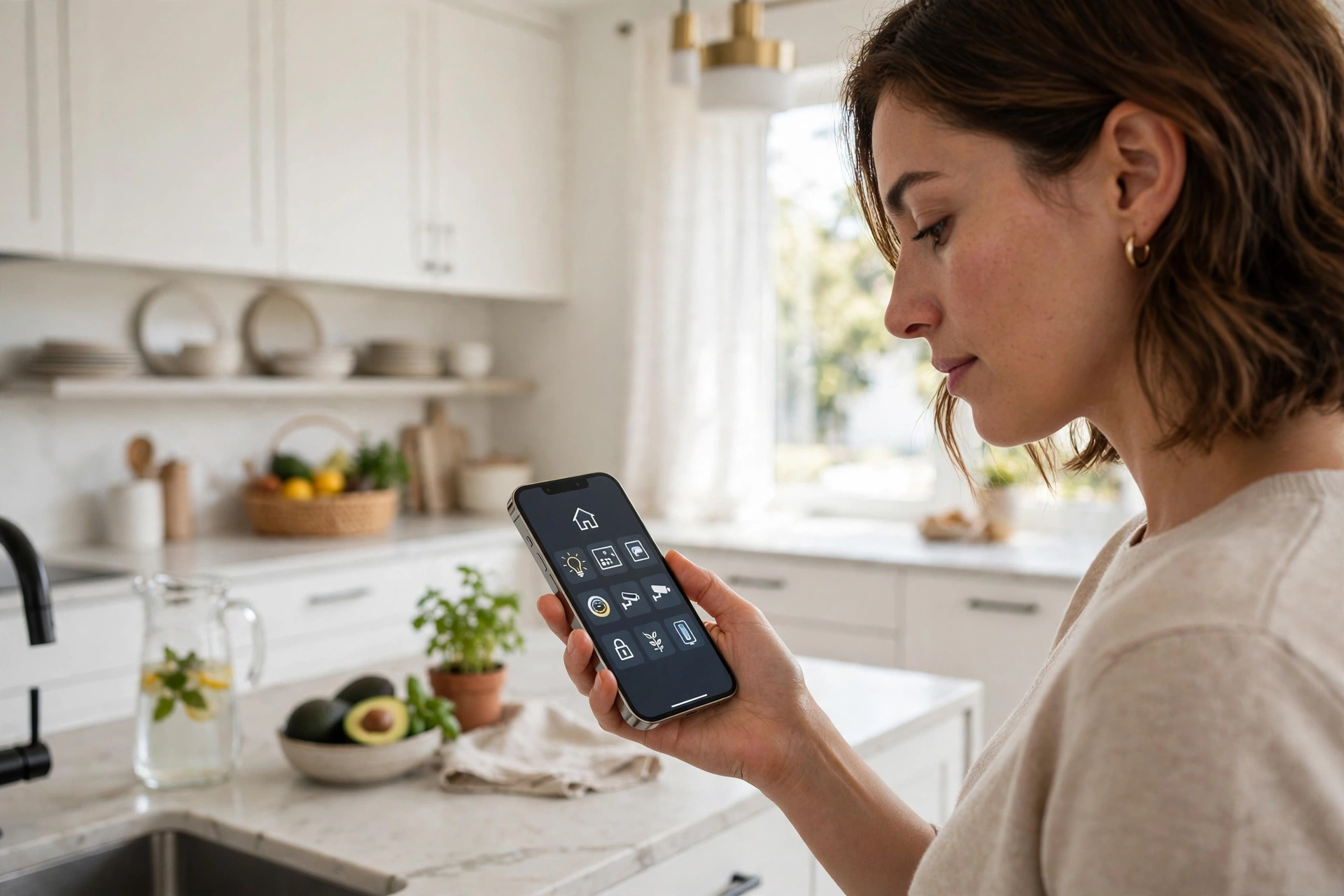
Now look at what is actually connected. In the settings page, find the list of connected devices, sometimes called Attached Devices or Device List. Go through it slowly. You should recognise your phone, your laptop, your television, and your smart gadgets. If you see a device you do not recognise, do not panic — it may be something you forgot about, like a printer or a games console. If something still does not belong, change your Wi-Fi password again and reconnect only the devices you trust.
8. Turn off remote management (2 minutes)
Remote management lets you change your router’s settings from outside your home, over the internet. Most households never use it, and leaving it on gives anyone on the internet a door to knock on. Look for Remote Management or Remote Access, usually under Administration or Advanced, and turn it off. If you genuinely need to manage your router while you are away, use your router maker’s own app with a strong login instead, and turn on two-factor authentication for that account if it is offered.
That is the list. Eight steps, about fifteen minutes, and your home network is in a much stronger place than it was this morning. If you want a second opinion, the official CISA guide covers the same ground and is worth bookmarking: CISA — Module 5: Securing Your Home Wi-Fi.
After the 15 minutes: two habits that keep it secure
The checklist is a one-off job, but two small habits keep it working. First, check for firmware updates every couple of months, or leave automatic updates on and forget about it. Second, change your Wi-Fi password when something changes — when a guest leaves after a long stay, or when a device is sold or given away. A secure network also does not help much if a phishing message tricks you into handing over a password on a fake login page. The network, the password, and the person using it all work together.
Common Wi-Fi myths
Myth 1: “My Wi-Fi has a password, so it is secure.”
A password helps, but it is only one layer. If the password is short or reused, or the same as the one printed on the router, it is not doing much work. The admin password, the encryption type, and the firmware matter just as much.
Myth 2: “Hiding my network name makes it invisible.”
Turning off the broadcast of your network name does not hide it from anyone using basic tools. It only makes it harder for your own devices to find. Keep the name visible and rely on a strong password and WPA3 or WPA2 instead.
Myth 3: “Nobody would target my home network.”
Most home network attacks are not personal. Automated tools scan the internet looking for routers with default passwords and old software, and they try them by the thousand. They do not care who you are — they care that the door is open.
Myth 4: “I need to buy expensive security software for my router.”
For most homes, the built-in settings in this guide are enough. A strong password, current firmware, WPA3 or WPA2, and a guest network cover the basics well. Be wary of any product that promises to make your network unhackable, because no product can promise that.
Frequently asked questions
How often should I change my Wi-Fi password?
You do not need to change it every month. Change it when something changes: a long-term guest leaves, a device is sold, or a password has been shared too widely. A long, unique password that you keep private will serve you well for a long time.
Is WPA3 better than WPA2?
Yes, WPA3 is the newer and stronger option, and you should use it if your router and devices support it. WPA2 with AES is still a solid choice if WPA3 is not available. Avoid WEP and the original WPA, which are no longer safe to rely on. If your router does not offer WPA2 at least, it is time to replace it.
Should I use the guest network for my smart devices?
It is a good idea. Smart devices such as cameras, doorbells, and speakers often have simpler software than a laptop, and they are not always updated as often. Putting them on a separate network means that if one of them has a problem, it cannot easily reach your laptop or phone.
What should I do if I see a device I do not recognise?
First, check whether it is something you own and forgot about, such as a printer, a console, or a smart plug. If you still cannot identify it, change your Wi-Fi password, reconnect only the devices you trust, and check the list again. If the unknown device returns, contact your internet provider for help.
Does turning off my Wi-Fi at night help?
It can reduce exposure slightly, but it is not a substitute for the steps in this guide. Turning the router off when you are away for a long time is fine. For everyday use, a strong password, current firmware, and WPA3 or WPA2 do far more than switching the router off each night.
My router is from my internet provider. Can I still change these settings?
In most cases, yes. Provider routers usually let you change the Wi-Fi password, the admin password, and the encryption type, even if some advanced options are locked. If a setting is not available to you, ask your provider whether they manage it for you, or whether a newer router is available.
The bottom line
Learning how to secure home wi-fi is not a technical project. It is a household job, like changing the batteries in a smoke alarm. Fifteen minutes, eight steps, and your network is harder to get into: a unique admin password, current firmware, a strong Wi-Fi password, WPA3 or WPA2, a guest network, WPS off, a quick check of connected devices, and remote management off. Do it once, then set a reminder to check for updates in a few months.